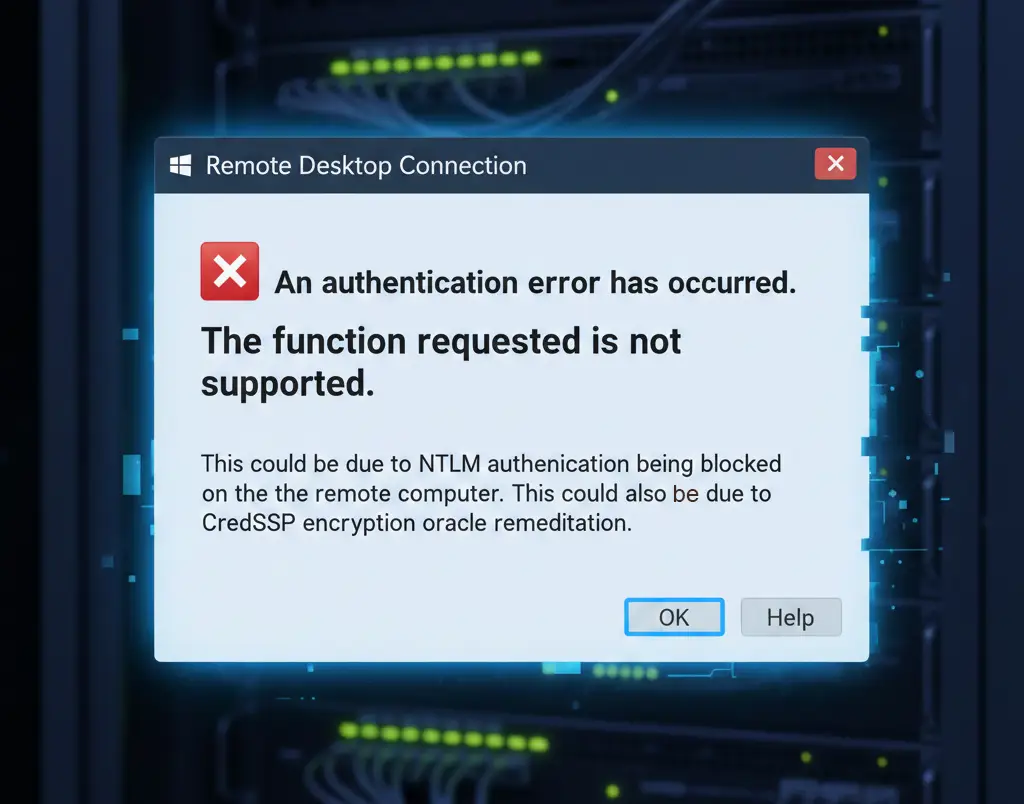
Many system administrators and developers connecting to remote infrastructure via Remote Desktop Protocol (RDP) have encountered the frustrating error:
“An authentication error has occurred. The function requested is not supported.”
The error message often mentions:
“This could be due to NTLM authentication being blocked on the remote computer. This could also be due to CredSSP encryption oracle remediation.”
This article provides a structured approach to diagnose and resolve this issue, focusing primarily on client-side configuration — often the easiest and fastest path to a solution.
1. Initial Diagnosis: Verify Connectivity
Before changing any settings, ensure your network path (VPN, corporate LAN, etc.) is working and that you can reach the domain controller and the target server.
Test Domain Controller Connectivity
Use the built-in Windows utility nltest in a PowerShell or Command Prompt window:
nltest /dsgetdc:examplecorp.local
Example Output:
           DC: \\DC-01.examplecorp.local
      Address: \\10.10.50.2
     Dom Guid: 9d8ce789-b3f6-42f4-901c-66fcb4633a4e
     Dom Name: EXAMPLECORP
  Forest Name: examplecorp.local
 Dc Site Name: Default-First-Site-Name
Our Site Name: Default-First-Site-Name
        Flags: PDC GC DS LDAP KDC ...
The command completed successfully
✅ If this succeeds, your VPN / internal network is correctly routing to the domain, and the issue is purely authentication-related.
2. Adjust Client-Side CredSSP Policy
The most common cause is a mismatch between your local machine’s CredSSP configuration and the server’s security policy.
Steps to Fix
Run the following in PowerShell as Administrator:
# Define registry path and value
$Path = 'HKLM:\Software\Microsoft\Windows\CurrentVersion\Policies\System\CredSSP\Parameters'
$Name = 'AllowEncryptionOracle'
$Value = 2

# Ensure the registry path exists
New-Item -Path 'HKLM:\Software\Microsoft\Windows\CurrentVersion\Policies\System' -Name CredSSP -Force | Out-Null
New-Item -Path 'HKLM:\Software\Microsoft\Windows\CurrentVersion\Policies\System\CredSSP' -Name Parameters -Force | Out-Null

# Set the value
Set-ItemProperty -Path $Path -Name $Name -Value $Value -Force
$Value = 2relaxes the encryption oracle policy to allow connections to servers enforcing stricter CredSSP settings.- This does not affect other RDP connections and is fully reversible.
After this, try reconnecting to your target RDP host.
3. Specify Domain Credentials
Always use Domain\Username format:
EXAMPLECORP\jdoe
Do not rely on cached credentials or local computer accounts, especially if your machine is not joined to the domain.
4. Optional / Last-Resort: Disable NLA on the Server
If the client-side fix doesn’t work, the server might be enforcing Network Level Authentication (NLA). You can temporarily disable it if you have administrative access:
Invoke-Command -ComputerName rdp-server.examplecorp.local -ScriptBlock {
    $key = 'HKLM:\System\CurrentControlSet\Control\Terminal Server\WinStations\RDP-Tcp'
    Set-ItemProperty -Path $key -Name 'UserAuthentication' -Value 0
    Restart-Service TermService -Force
}
⚠️ Disabling NLA lowers security — only do this temporarily for troubleshooting.
5. Notes for Readers
- Ensure your VPN or internal network routes DNS and Kerberos traffic to the domain controller.
- If your client is not domain-joined, Kerberos cannot issue a ticket, so RDP will fall back to NTLM — and the server may block NTLM.
- The registry change above is safe and can be removed with:
Remove-ItemProperty -Path $Path -Name $Name
- Always test from a known working internal host before changing policies globally.
Following this workflow fixes the majority of “Function Not Supported” RDP errors caused by CredSSP or NTLM policy mismatches.